> ## Documentation Index
> Fetch the complete documentation index at: https://relevanceai.com/docs/llms.txt
> Use this file to discover all available pages before exploring further.
# Code - JavaScript
> A component to run JavaScript
Although Relevance in general is a zero or low code platform, you can still code your own features using the JavaScript tool step if you want to.
## How to use a JavaScript step
You can add a JavaScript tool-step to any tool by creating a new tool, clicking on the "Add Step" button under the Tool steps sections, searching for "JavaScript" and clicking on the "JavaScript Code" tool step as shown below:
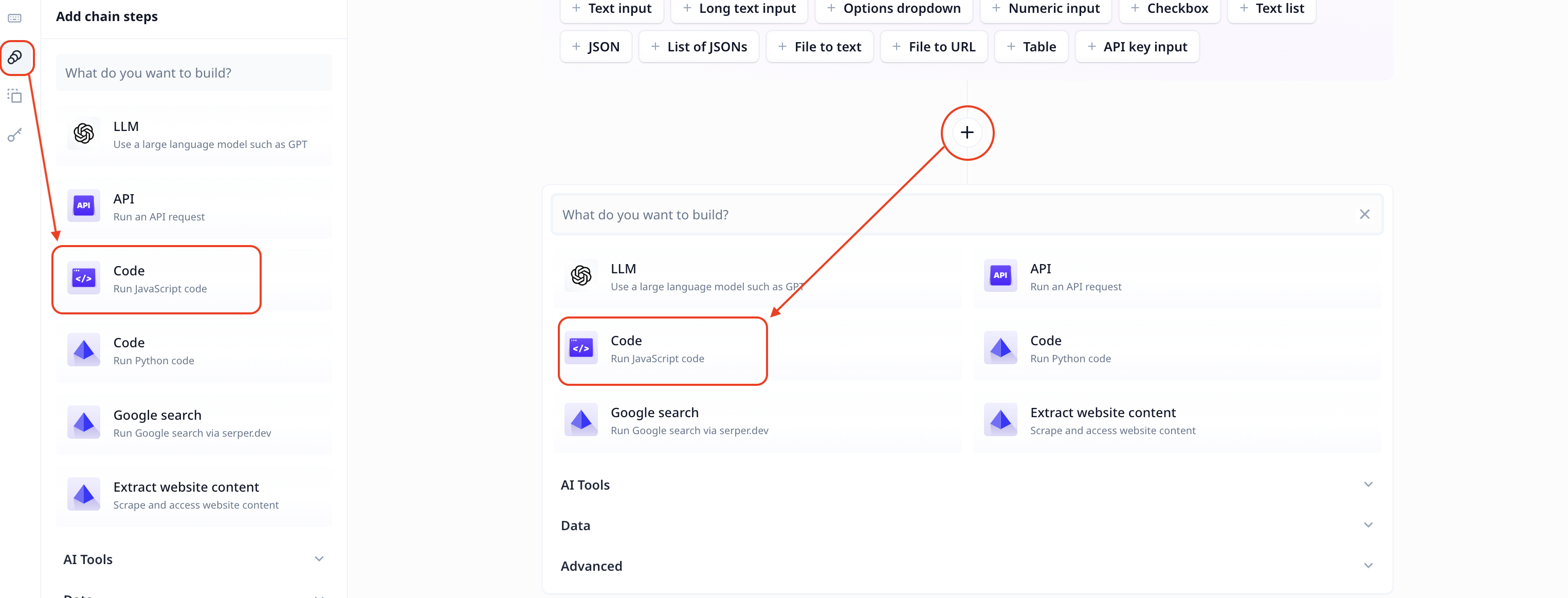 Enter your code in the code section as you do in any other IDE (e.g. VS code, WebStorm)
### Access to input variables, other steps' output and api keys
You can access tool input variables, other tool step outputs, and api\_keys you've created in Relevance using the following syntax:
Enter your code in the code section as you do in any other IDE (e.g. VS code, WebStorm)
### Access to input variables, other steps' output and api keys
You can access tool input variables, other tool step outputs, and api\_keys you've created in Relevance using the following syntax:
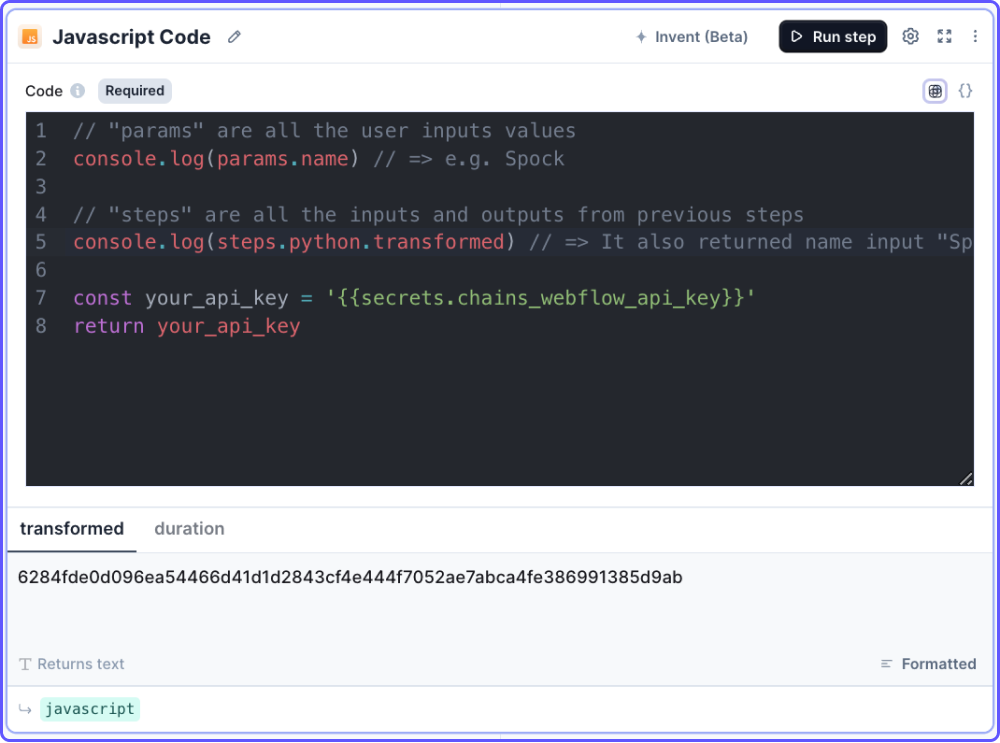 * **Access to input variables** is via `params`. `params` is a dictionary and names of variables are the dictionary keys. For example,
if there is an input parameter named "name" you can access to title value using `params.name`
* **Access to other steps' output** is via `steps`. `steps` is a dictionary and the names of steps are the dictionary keys. For example,
if there is a step named "summary" you can access its produced value using `steps.summary.output`.
Or if there is a code step, you can access its produced output using `steps.python.transformed`, where 'python' represents the default variable name for the python code step, which you can change.
* **Access api keys**: You can access api keys you have added to the platform via the integrations page, with `'{{secrets.chains_name_of_your_api_key}}'`.
Note that you can set the output of this step to be a string generated by a Large Language Model (LLM) such as GPT. This can be done
by clicking on the LLM icon on the top right.
### Installing & using packages
### Deno runtime
When using the `Deno` runtime (the default), you can import packages using an `import` expression with a service like `esm.sh`. For example, to use the `change-case` package:
```javascript theme={null}
const { sentenceCase } = await import("https://esm.sh/change-case");
return sentenceCase(title);
```
Note: you cannot use `import` statements, or `require`.
```javascript theme={null}
// ❌ don't do these
import { sentenceCase } from 'https://esm.sh/change-case'
import { sentenceCase } from 'change-case'
const { sentenceCase } = require('change-case')
```
#### Node.js runtime
Packages are currently not supported in Node
## Access the step output
If the name of a JavaScript step is `javascript`, you can access the step output using `javascript.transformed`.
Note that a step name is different from the step title. Step titles can be found on the top left
of steps. A step name is shown on the bottom left, in smaller font and highlighted green.
## Common errors
The most common errors seen in our logs are JavaScript coding related errors to which there are millions of resources available online.
However, occasionally, users encounter the `Code execution timed out` error. Keep in mind that JavaScript snippet execution time
cannot exceed 15 minutes.
* **Access to input variables** is via `params`. `params` is a dictionary and names of variables are the dictionary keys. For example,
if there is an input parameter named "name" you can access to title value using `params.name`
* **Access to other steps' output** is via `steps`. `steps` is a dictionary and the names of steps are the dictionary keys. For example,
if there is a step named "summary" you can access its produced value using `steps.summary.output`.
Or if there is a code step, you can access its produced output using `steps.python.transformed`, where 'python' represents the default variable name for the python code step, which you can change.
* **Access api keys**: You can access api keys you have added to the platform via the integrations page, with `'{{secrets.chains_name_of_your_api_key}}'`.
Note that you can set the output of this step to be a string generated by a Large Language Model (LLM) such as GPT. This can be done
by clicking on the LLM icon on the top right.
### Installing & using packages
### Deno runtime
When using the `Deno` runtime (the default), you can import packages using an `import` expression with a service like `esm.sh`. For example, to use the `change-case` package:
```javascript theme={null}
const { sentenceCase } = await import("https://esm.sh/change-case");
return sentenceCase(title);
```
Note: you cannot use `import` statements, or `require`.
```javascript theme={null}
// ❌ don't do these
import { sentenceCase } from 'https://esm.sh/change-case'
import { sentenceCase } from 'change-case'
const { sentenceCase } = require('change-case')
```
#### Node.js runtime
Packages are currently not supported in Node
## Access the step output
If the name of a JavaScript step is `javascript`, you can access the step output using `javascript.transformed`.
Note that a step name is different from the step title. Step titles can be found on the top left
of steps. A step name is shown on the bottom left, in smaller font and highlighted green.
## Common errors
The most common errors seen in our logs are JavaScript coding related errors to which there are millions of resources available online.
However, occasionally, users encounter the `Code execution timed out` error. Keep in mind that JavaScript snippet execution time
cannot exceed 15 minutes.